Next.js Core Web Vitals: How I Achieve 90+ PageSpeed Scores for Client Sites

Written by
Bhalli B
Full-Stack Engineer & SaaS MVP Architect
Certified Full-Stack Developer & MVP Specialist · Lahore, Pakistan
To consistently achieve a 90+ Google PageSpeed score in Next.js, you must migrate from legacy First Input Delay (FID) to the stricter Interaction to Next Paint (INP) metric, leverage React Server Components (RSC) to reduce client-side JavaScript payloads by up to 90%, pre-render static layouts utilizing Partial Prerendering (PPR) to deliver sub-50ms Time to First Byte (TTFB), and enforce explicit sizing constraints using the native next/image and next/font libraries to eradicate Cumulative Layout Shift (CLS).
1. The Startup Business Math: PageSpeed as a Primary Growth Metric
For early-stage startup founders in 2026, page latency is a silent conversion killer. If your public-facing marketing pages or SaaS onboarding flows take longer than three seconds to load, you will lose up to 50% of your prospective customers before they see your value proposition.
We can mathematically model your business's customer conversion rate (CRfinal) as a decaying exponential function of your page load latency (L) measured in seconds:
Let's look at the financial impact of this decay model:
- The High-Performance Scenario (L = 1.2s): A baseline conversion rate of 4.0% scales down to an actual conversion of 3.34%.
- The Unoptimized Scenario (L = 3.5s): Due to heavy unindexed database queries and rendering blocks, your conversion drops to 2.37%.
This minor performance delta represents a 29% loss in customer acquisition efficiency. For a bootstrapped startup investing $5,000/month in paid acquisition, unoptimized page speed wastes $1,450/month of your valuable runway.
According to Google's Chrome User Experience Report (CrUX) field data, over 47% of live domains fail to meet minimum performance thresholds. By optimizing your Next.js application, you immediately gain a search ranking and customer experience advantage over nearly half of your competitors.
2. Largest Contentful Paint (LCP) Optimization: Crushing the Loading Waterfall
Largest Contentful Paint (LCP) measures the time it takes for your application's largest above-the-fold content block-usually a hero banner, product showcase image, or heading block-to render fully in the viewport. To achieve a 90+ PageSpeed score, your LCP must resolve in under 2.5 seconds.
Eliminating the Render-Blocking CSS & JavaScript Waterfall
In a standard React Single Page Application (SPA), the browser receives an empty HTML shell and must wait to download, parse, and execute your entire bundle before painting any content.
Next.js addresses this by using Server-Side Rendering (SSR). The server generates the complete HTML layout and sends it to the browser immediately. The browser paints the visual structures while loading interactive scripts in the background.
To keep your LCP under 2.5 seconds, follow these optimization rules:
- Preload LCP Media: Never lazy-load above-the-fold assets. Use the
priorityattribute in the Next.js Image component to tell the browser to download your hero assets immediately. - Implement Low-Quality Image Placeholders (LQIP): Use the
placeholder="blur"attribute. This serves a tiny, embedded Base64-blurred preview of your image instantly within the HTML stream, giving users immediate visual feedback. - Avoid Sequential Server-Side Waterfalls: Do not use consecutive await statements for data fetches that do not depend on one another. Run queries in parallel to keep your server response times low.
Unoptimized vs. Optimized Rendering Pipeline
Browser loads an empty HTML shell and downloads scripts sequentially before rendering above-the-fold assets.
Next.js pre-renders semantic tags on the server, feeds parallel queries, and downloads the LCP image with high priority.
Here is a highly optimized, responsive hero layout component designed to minimize LCP delay:
// components/HeroBanner.tsx
import Image from "next/image";

interface HeroBannerProps {
  src: string;
  alt: string;
  title: string;
  subtitle: string;
}

export default function HeroBanner({ src, alt, title, subtitle }: HeroBannerProps) {
  return (
    <header className="relative w-full overflow-hidden bg-slate-950 px-6 py-24 md:px-12">
      {/* Background Graphic optimized for zero LCP and CLS impact */}
      <div className="absolute inset-0 z-0 opacity-30">
        <Image
          src={src}
          alt={alt}
          fill
          priority // Tells the compiler to prefetch this critical LCP resource
          sizes="(max-width: 768px) 100vw, (max-width: 1200px) 50vw, 33vw"
          className="object-cover object-center"
          placeholder="blur" // Renders a blurred placeholder instantly
          blurDataURL="data:image/webp;base64,UklGRmAAAABXRUJQVlA4IDQAAADwAQCdASoIAAUAAgA0JaQAA3AA/vv8AAA="
        />
      </div>

      <div className="relative z-10 max-w-4xl space-y-6">
        <h1 className="text-4xl font-extrabold tracking-tight text-white sm:text-6xl">
          {title}
        </h1>
        <p className="max-w-2xl text-lg text-slate-300 sm:text-xl">
          {subtitle}
        </p>
      </div>
    </header>
  );
}
3. The INP (Interaction to Next Paint) Revolution: Upgrading Interactivity
In March 2024, Google officially replaced First Input Delay (FID) with Interaction to Next Paint (INP). This represents a major shift in how web performance is measured:
- First Input Delay (FID - Legacy): Only measured the first time a user clicked a button on your site.
- Interaction to Next Paint (INP - Current): Measures the latency of all user interactions (clicks, taps, and keyboard inputs) throughout the entire lifespan of a user's session, reporting the single slowest interaction.
To maintain a good INP score, your interface must visually respond to user input in under 200 milliseconds.
INP Interaction Flow
Break Up Long Tasks
Ensure click and key listeners complete in under 50ms. Yield CPU control back to the browser's paint loop immediately.
Keep Handler Code Simple
Minimize complex calculations or DOM updates on user interaction. Streamline React state setters.
Minimize DOM Size
Keep document tree light. The browser paints visual changes in under 16ms, ensuring smooth transitions.
Architecting for Lean Client-Side Bundles
The primary cause of poor INP scores is executing heavy JavaScript on the browser's main thread during a user interaction.
Next.js App Router solves this by defaulting all files to React Server Components (RSC). RSCs execute entirely on the server side, allowing you to run complex data formatting and ORM queries without shipping any corresponding JavaScript to the browser.
To optimize INP, use these React 19 concurrent primitives:
- Leaf-Level Interactivity: Only declare the
"use client"directive on small, isolated leaf components at the bottom of your component tree. - React 19 Server Transitions: Wrap long-running updates or database operations inside the
useTransitionhook. This executes state changes asynchronously in the background, keeping the browser's main thread responsive to user input.
Here is an optimized search interface that uses React 19's transition states to maintain sub-50ms INP responsiveness under heavy rendering loads:
// components/DynamicAssetSearch.tsx
'use client';

import { useState, useTransition } from "react";

interface Asset {
  id: string;
  name: string;
  category: string;
}

export default function DynamicAssetSearch({ sourceAssets }: { sourceAssets: Asset[] }) {
  const [searchTerm, setSearchTerm] = useState("");
  const [results, setResults] = useState<Asset[]>(sourceAssets);
  const [isComputing, startTransition] = useTransition(); // Non-blocking state transition

  const handleFilter = (e: React.ChangeEvent<HTMLInputElement>) => {
    const value = e.target.value;
    setSearchTerm(value);

    // Keep input field immediately responsive while filtering in the background
    startTransition(() => {
      const filtered = sourceAssets.filter((asset) =>
        asset.name.toLowerCase().includes(value.toLowerCase())
      );
      setResults(filtered);
    });
  };

  return (
    <div className="w-full max-w-xl space-y-4 rounded-xl border border-slate-800 bg-slate-950 p-6">
      <div className="space-y-2">
        <label htmlFor="asset-search" className="text-sm font-bold text-slate-200">
          Search Workspace Assets
        </label>
        <div className="relative">
          <input
            id="asset-search"
            type="text"
            value={searchTerm}
            onChange={handleFilter}
            placeholder="Type to filter..."
            className="w-full rounded-lg border border-slate-800 bg-slate-900 px-4 py-3 text-white focus:border-emerald-500 focus:outline-none"
          />
          {isComputing && (
            <span className="absolute right-3 top-3.5 text-xs text-emerald-500 animate-pulse">
              Processing...
            </span>
          )}
        </div>
      </div>

      <ul className="divide-y divide-slate-800 rounded-lg border border-slate-800 bg-slate-900">
        {results.slice(0, 5).map((asset) => (
          <li key={asset.id} className="p-4 text-sm text-slate-300">
            <span className="font-semibold text-white">{asset.name}</span> - {asset.category}
          </li>
        ))}
      </ul>
    </div>
  );
}
4. Partial Prerendering (PPR) & Cache Components: The 2026 Edge Secret
Historically, founders had to choose between Static Site Generation (SSG) for fast page loads and Server-Side Rendering (SSR) for fresh, dynamic content. Next.js 16 solves this through Partial Prerendering (PPR) and Cache Components.
PPR pre-renders the static layout shell (e.g., your SaaS sidebar, navigation menu, and headers) at build time, caching it at the global CDN edge. This ensures a sub-50ms Time to First Byte (TTFB) from anywhere in the world.
Partial Prerendering Pipeline
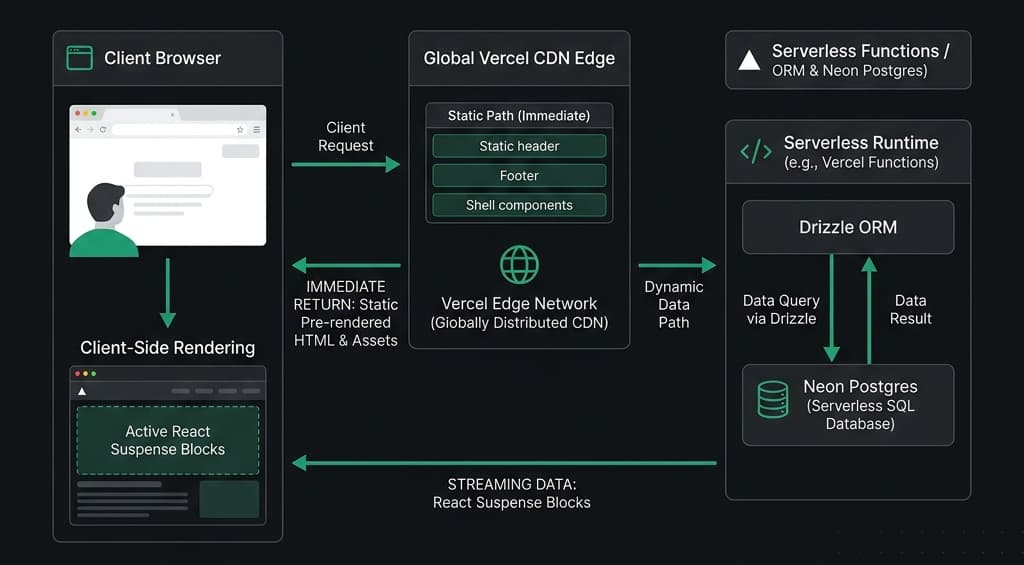 Figure 1: Architectural diagram showcasing Next.js 16 Partial Prerendering, pulling static shells from Vercel Edge and streaming dynamic queries from Neon Postgres.
Implementing PPR with React Suspense
When a user visits your page, the browser receives the cached static shell immediately. Next.js then leaves placeholder "holes" where your dynamic components reside, streaming the dynamic data over the same HTTP request as soon as your serverless database queries resolve.
To enable component-level caching in your Next.js configuration:
// next.config.ts
import type { NextConfig } from 'next';

const nextConfig: NextConfig = {
  cacheComponents: true, // Enables stable component caching and PPR in Next.js 16
};

export default nextConfig;
You can then use the "use cache" directive inside server-side data fetching functions to tell the framework that the response is safe to cache:
// services/products.ts
export async function getStableProducts() {
  'use cache'; // Caches this specific data query on the server

  const response = await fetch("https://api.example.com/products");
  return response.json();
}
5. Visual Stability: Banishing Cumulative Layout Shift (CLS)
Cumulative Layout Shift (CLS) measures unexpected layout shifts that occur while a page is loading. To provide a good user experience and rank well on Google, your CLS score should be under 0.1.
Layout Stability Comparison
Images load with no reserved height and custom fonts trigger late swaps, causing paragraph text to jump around.
next/image allocates exact container dimensions and next/font self-hosts and renders custom fallbacks automatically.
Eliminating Font and Image Shifting
The two most common causes of high CLS scores are unreserved image dimensions and a "flash of unstyled text" (FOUT) that occurs when custom web fonts finish loading:
- Use next/image to Reserve Aspect Ratios: Always specify
widthandheightattributes on yournext/imagecomponents. This reserves the correct aspect ratio in the document layout, preventing content from shifting when the image finishes loading. - Eliminate Layout Shifts with next/font: Next.js automatically self-hosts and optimizes Google Fonts. By using the
next/fontAPI, font files are converted into pre-compiled CSS variables on the server, eliminating the layout shifts caused by custom web fonts.
6. PM Strategy Checklist: Scoping Performance Budgets
As a Certified Project Manager, I encourage founders to avoid "hype-driven optimization." Spending 50 hours trying to raise your PageSpeed score from 94 to 98 is a poor use of your runway if your core value loop is not yet validated.
Instead, establish a practical, ROI-focused performance strategy:
- Marketing Pages & Blog (Priority 1 - Must-Have): These public-facing pages rely on search engine rankings to drive traffic. They must hit a 90+ PageSpeed score to compete effectively.
- Authenticated App & Dashboard (Priority 2 - Should-Have): These pages live behind a login wall where search engines cannot crawl. A brief loading state is acceptable here if it allowed you to launch your product weeks sooner.
| Page Type | Target PageSpeed Score | Primaries Measured | Target LCP | Target INP |
|---|---|---|---|---|
| Landing Pages | 95+ | SEO, TTFB, LCP | < 1.5s | < 100ms |
| SaaS Dashboards | 80+ | INP, Layout Stability | < 2.5s | < 200ms |
| Static Blog Posts | 98+ | FCP, LCP Paint Speeds | < 1.0s | < 50ms |
7. Core Web Vitals Comparison Matrix
We can summarize the recommended thresholds and optimization strategies for each Core Web Vital metric as follows:
| Metric | Good Threshold | Needs Improvement | Next.js Optimization Strategy |
|---|---|---|---|
| FCP | < 1.8s | 1.8s - 3.0s | CSS inlining, Server-Side Rendering (SSR) |
| LCP | < 2.5s | 2.5s - 4.0s | Images with priority, preloading LCP element |
| INP | < 200ms | 200ms - 500ms | React Server Components, useTransition hooks |
| CLS | < 0.1 | 0.1 - 0.25 | Width and height on next/image, next/font |
8. Conclusion & Actionable Roadmap
Optimizing Core Web Vitals is one of the most effective ways to reduce bounce rates, boost search rankings, and increase conversion rates. By utilizing Next.js 16's App Router, React Server Components, and Partial Prerendering, you build a performant, scale-ready application on a robust foundation.
Let’s Optimize Your Next.js Stack: I specialize in engineering high-performance web applications using modern, edge-ready architectures (Next.js, Drizzle ORM, Better Auth, and Stripe).